
Notion for project management can replace a dozen scattered tools if you build a single, minimal system and keep it organized. This guide walks through a lean Notion workspace built around one shared dashboard, the PARA layout, and three core databases so each project page becomes the project’s single-source plan. You’ll get explicit properties, linked relations, and templates that make new work start predictably, plus practical views and conservative automations to keep the workspace fast as your team scales. If your Notion account feels like a graveyard of half-finished pages, clean and standardize it now — the goal is a compact, repeatable system that reduces context switching and speeds adoption across the team.
What you need to know
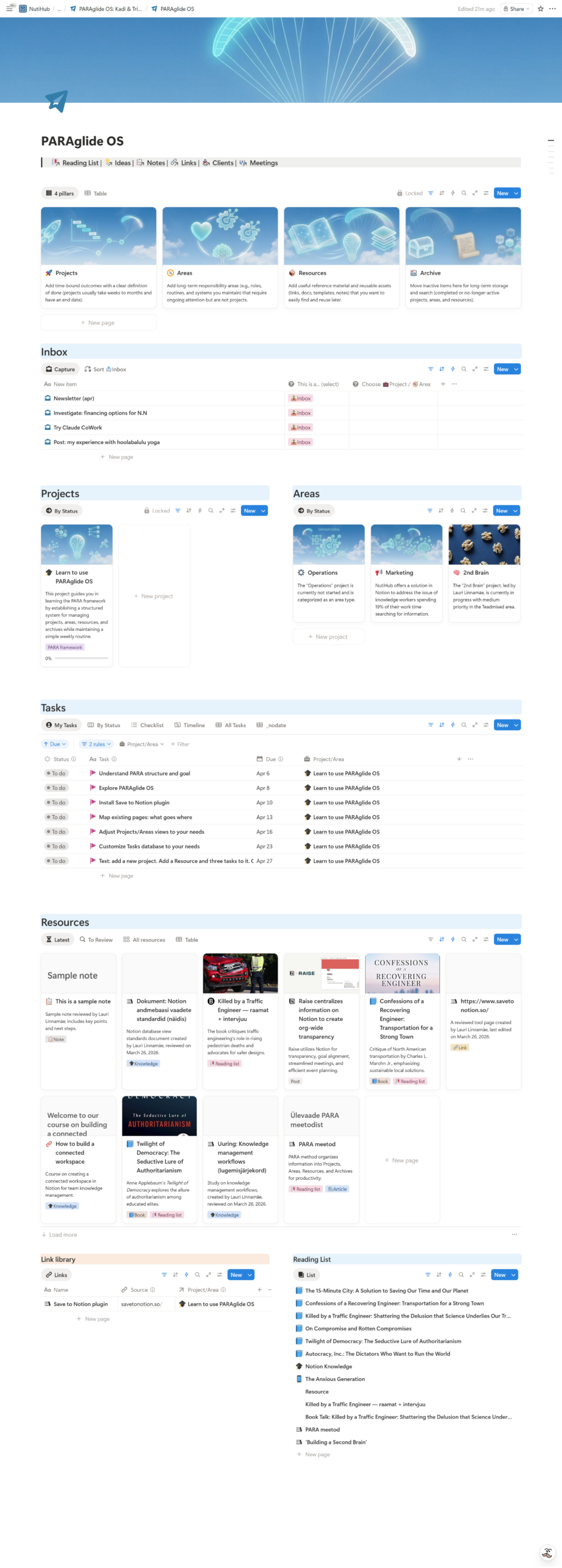
Keep a few simple rules front of mind so the workspace stays usable. Use one shared Dashboard, follow PARA for structure, and limit heavy relations or rollups until you need them. These choices reduce ad-hoc pages and make it clear where to add and track work.
- Single dashboard: One shared dashboard is the source of truth. Link Projects, Tasks, and Documents there to stop ad-hoc pages and scattered links.
- PARA layout: Organize content into Projects, Areas, Resources, and Archive so navigation and ownership remain predictable.
- Visible views: Use Kanban for flow, Timeline for planning, and Calendar for dates. Keep columns and filters minimal to avoid clutter.
- Relations and rollups: Link Tasks to Projects and roll up percent complete so progress appears on project pages without manual status chasing.
- Automate sparingly: Start with a few practical automations and templates, then measure impact before adding complexity so the structure stays stable.
How to set up Notion for project management
Set up the workspace so starting and tracking work is consistent for everyone. Begin with a single shared Dashboard organized by PARA: Projects, Areas, Resources, Archive. Include a Projects hub, a Tasks inbox, and a Documents area so teammates stop creating ad-hoc pages. A tidy workspace prevents link rot and saves time as the team scales.
Create three core databases and keep properties minimal to preserve performance: Projects, Tasks, and Documents. Link them with relation properties so the trio functions as a lightweight project tracker inside Notion. The next list shows the essential fields to get started quickly.
- Projects: Name (Title), Duration (Date range), Status (Select), Tasks (Relation → Tasks), Documents (Relation → Documents), Last edited (Last edited time)
- Tasks: Name (Title), Done? (Checkbox), Due date (Date), Project (Relation → Projects), Assignee (Person), Priority (Select)
- Documents: Name (Title), Project (Relation), Type (Select), Link or Files
After adding relations, create project templates that embed a filtered linked Tasks view so each project page becomes the single-source plan. Build two or three templates: simple delivery, internal initiative, and recurring ops; each should include a filtered Tasks view, an objectives checklist, and quick links to relevant Documents. Include the phrase “notion for project management” in an internal help page or a template title so teammates can find the system via search. With templates in place, you’re ready to set up views that keep daily work moving.
Views that make work visible: Kanban, Gantt, calendar
Views change how teams think about work, so pick them intentionally. The right view keeps planning short and execution clear while reducing the need for extra coordination. Below are recommended views and simple rules for when to use each.
For daily flow, use a Kanban board grouped by status: Backlog, Next, Doing, Blocked, and Done. Keep columns short and avoid extra swimlanes that add complexity. Add a weekly “Triage” view filtered to Next and Doing so planning stays compact and actionable.
Use a Timeline view for planning and overlap detection and treat it as your Gantt chart. Put start and end dates on tasks, add a Dependencies relation, and surface the predecessor end date with a rollup or formula. Notion will not auto-shift dependent dates, so show a suggested start date and require someone to confirm any changes.
Complement flow and timeline with Calendar, list, and personal views so nothing hides. Create a Calendar for launches and milestones, an “All open tasks” list filtered to Done? unchecked, and a “My work” view filtered to Assignee and the next seven days so each person sees immediate commitments. Put these views on the Dashboard and link them to Projects, Tasks, and Documents so cards and timeline items always show project context and attachments.
Rollups, relations, and progress tracking
Make progress visible without extra status meetings by using one clear rollup. Start by linking tables: add a relation in Projects pointing to Tasks, then add a rollup in Projects that targets that relation. Configure the rollup to use the Tasks relation, select the Done? checkbox, and set the aggregation to Percent checked. That single rollup gives you a project-level percent complete and keeps Projects authoritative for progress reporting.
Expose the rollup as a numeric percent so filters and automations can use it. For display, add a compact formula that maps the percent to a 0-10 progress bar or returns a label such as “X% complete.” Keep formulas short and document what they do so teammates can edit them later, and retain the raw percent for automation or filtering logic.
Avoid common rollup pitfalls: you cannot roll up a rollup and very large relations slow pages. Limit relation size by archiving finished tasks into an Archive database and avoid chaining rollups across three or more tables. Test heavy rollups on a workspace copy before applying them in production to prevent performance surprises.
Automations, templates, and when to customize
Automations and templates reduce repetitive work, but they can introduce fragility if overused. Start small, measure the benefit, and expand only when the automation removes clearly measurable manual steps. The guidance below shows practical first automations, template patterns, and a safe rollout approach.
Begin with automations that remove manual, repetitive steps. Typical starters include converting Slack or email briefs into Notion tasks, sending daily nudges for overdue items, and duplicating a project template when a new engagement starts. Use Notion native automations for simple triggers and tools like Zapier, Make, or n8n for richer flows; build one automation at a time and count how many manual actions it removes.
Choose templates that match how your team delivers work rather than what looks neat. For marketing, use campaign templates grouped by phase; for software, include epics, sprints, and a backlog view. Agencies benefit from client trackers with scopes and invoices prewired.
Ship a minimum viable workspace quickly: Projects, Tasks, Documents, a Kanban view, and one Timeline are enough to test real work. Run a short pilot to validate the setup before adding custom fields or deep automations. Get three people to use the workspace for two sprints before expanding fields or automations. If adoption stalls, trim unnecessary fields and focus on rollout training. Keep automations and templates tied to core tables and clear relation properties so rollups and filters continue to work as you iterate.
Case study: NutiHub’s bespoke project management build
A client was running work across eight different apps and had no single source of truth. That fragmentation caused missed deadlines and constant context switching, while limited training bandwidth and a fixed launch date tightened the timeline. The brief was simple: deliver a compact, low-friction workspace the team could adopt quickly.
The solution used a compact Projects, Tasks, and Documents architecture with a launch Dashboard that included a Timeline for the big picture and role-specific “My work” views for daily focus. We added one automation that converted Slack briefs into tasks and provided two 45-minute live trainings plus a recorded walkthrough. The team started using an importable template the next day and, within 60 days, consolidated tools and reported an average of 8+ hours saved per employee per month.
Adoption rose because the team received an MVP that solved a specific workflow and got quick, focused training. The practical takeaway: three core databases, clear views, one rollup for progress, and one meaningful automation are enough to stop hunting for information and start delivering predictably. Download the free Notion project management templates linked in this article, or contact NutiHub to tailor the setup to your constraints.
Keep it minimal and make it visible
You do not need a sprawling system to manage meaningful work. Start with one small change today: create a Dashboard page, add linked databases for Projects, Areas, Resources, and Archive, then add a Kanban view filtered to Active projects and a percent-complete rollup. Focus on keeping the system simple, visible, and consistent so teammates can adopt it without friction.