
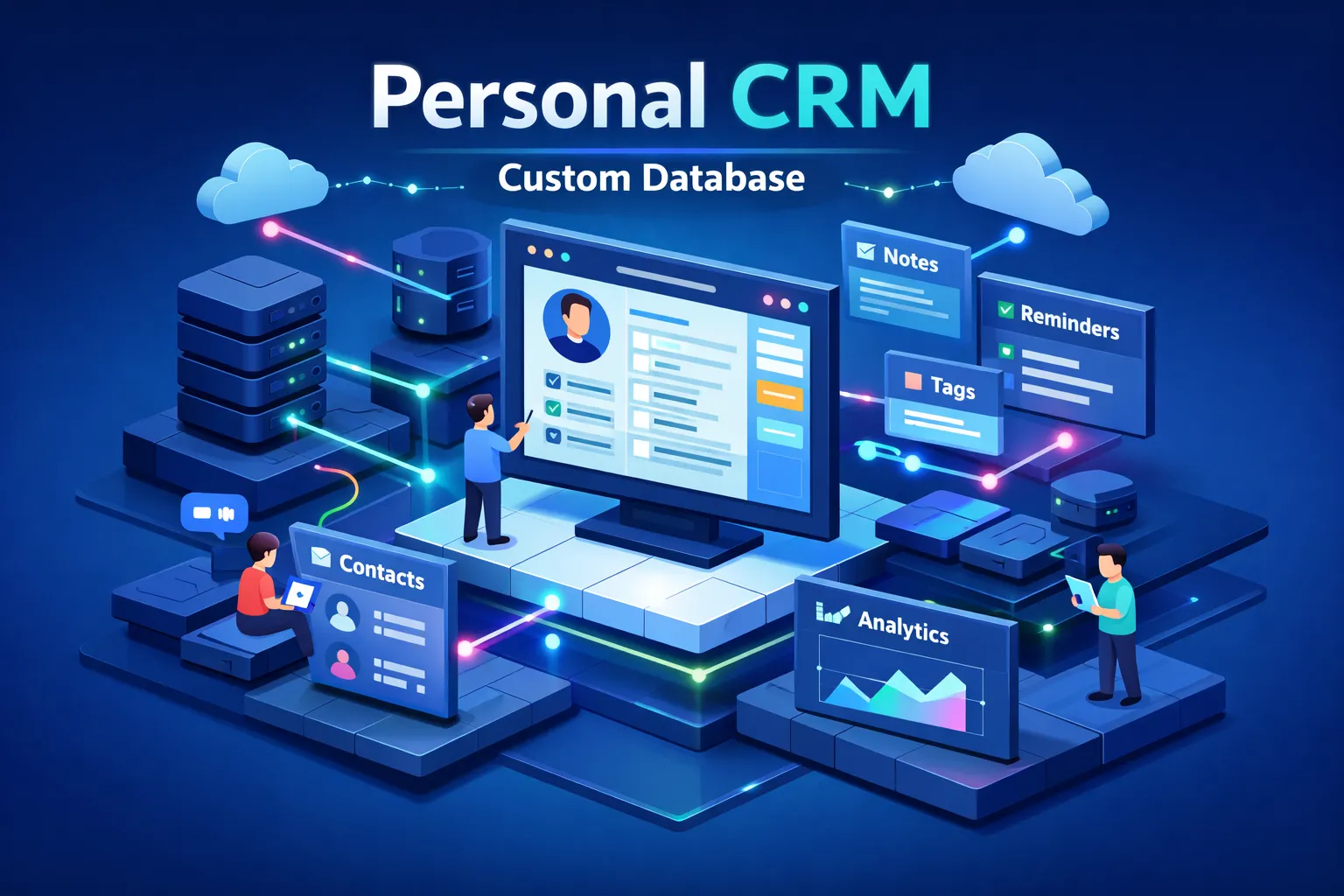
You can build a personal CRM with a flexible database tool without a long setup or expensive subscriptions. This five-step walkthrough takes you from a blank workspace to a practical personal relationship manager, covering platform choice, a lean relational schema, imports and deduplication, automations, and the small workflows that make you use it every day. The aim is a DIY CRM that fits your habits instead of forcing you to change them.
Pick the platform early to avoid hours of rework. Decide whether you need note-first convenience, structured relational data, or a local SQL setup for full control, then run a short decision framework to narrow options. Think in terms of scale, required automations, and whether notes and documents must live alongside records so you keep the shortlist practical before you start schema design.
Quick summary
- Pick the platform: Choose by scale, automations, and whether notes must sit with records. Airtable provides relational structure and powerful automations; Notion is better for rich notes and a single workspace; SQLite gives local control and exportability.
- Design a schema: Limit the model to a few core entities with minimal fields, and link people to companies for predictable relationships. A compact schema keeps filters and automations stable as you scale.
- Import and clean: Export all sources to CSV, normalize fields, and run a dedupe pass before importing to avoid messy data. Test imports in small batches and catch duplicates with spreadsheet formulas before you touch the workspace.
- Make it useful: Build focused views such as Next actions, Recent interactions, and High priority; add simple automations and a priority score so the system surfaces the right work. Design views to match real workflows so the CRM becomes part of daily routine.
- Back up and maintain: Export weekly or monthly, store encrypted backups, and treat the first version as a working draft you iterate. Schedule permission reviews and quarterly restore tests so recovery works when you need it.
Step 1: choose the right tool
Choosing the right platform early saves hours of rework. Start by deciding whether you need a note-first workspace, a structured relational database, or a local SQL solution for full ownership. Note-first tools work when context and document links matter; structured databases are better for repeatable workflows and integrations, and local SQL fits teams that need offline control and guaranteed exports.
Use three quick filters to narrow options: expected record volume, need for native automations, and whether notes and documents must live alongside records. Ask whether you manage under 1,000 records or many thousands, whether you need scheduled emails and multi-step automations or webhooks, and whether your notes require rich linked documents or simple text fields. Those answers quickly rule out tools that would slow you down.
Compare trade-offs plainly. Notion fits if you want an all-in-one workspace with rich notes and simple relations, while Airtable is a better match when you need relational tables, reliable APIs, and native automations. SQLite suits developers who want local control and easy exports, Coda works for doc-first automation, and Google Sheets remains practical for lightweight or spreadsheet-heavy workflows.
Use this checklist to decide:
- Expected record volume: under 1,000 or over 1,000.
- Need for scheduled, native automations (yes or no).
- Requirement for exportability and API access for integrations.
When in doubt, pick Airtable for structure and automations, or Notion for integrated notes and simplicity. Next, map the essential fields and relations so your chosen tool stores the right data.
Step 2: design a simple relational schema
A tidy schema keeps your CRM usable and easy to maintain. Limit your model to a few core entities and minimal fields so views, filters, and automations remain reliable. Small models win because fewer fields make relationships clearer and automation rules easier to manage.
- Contacts: id, first_name, last_name, email (unique), phone_number, company_id, created_at, updated_at.
- Companies: id, name, main_email, phone_number, address, created_at, updated_at.
- Interactions: id, contact_id, type (call, email, meeting), date, notes, company_id (optional), created_at.
- Tags: id, name (unique), created_at.
- Tasks: id, contact_id, title, due_date, status, company_id (optional), created_at.
Model cardinality in plain terms: put the foreign key on the “many” side for one-to-many relationships, and use a junction table or linked-record relation for many-to-many. A company has many contacts; a contact has many interactions and tasks. Connect tags to contacts with a contact_tags junction table instead of stuffing comma lists into a single field.
Map the model to your chosen tool with small adjustments and keep the core structure consistent. In Notion, use relation properties and rollups to surface last interaction and task counts (Notion Starter Pack: From Zero to Real Tool, NutiHub provides a guided setup if you prefer a template). In Airtable, use linked records and lookup fields for company details and last contact date.
For SQLite, create tables named contacts, companies, interactions, tags, tasks, and contact_tags, set email as a unique indexed column, and enforce foreign keys. Keeping the mapping portable makes views and automations easier to implement later.
Step 3: import, clean and deduplicate contacts
Most CRM problems start at import. Export every source to CSV, for example Google Contacts, LinkedIn, and spreadsheet exports, then clean the data in Google Sheets or Excel before importing. Do a proof run with 50 rows to confirm field mapping and formats before importing larger batches.
- Standardize name fields into first and last columns.
- Normalize phone formats with country codes and no punctuation.
- Add or mark missing emails and flag those rows for manual enrichment.
Deduplication approaches differ by platform, so plan accordingly. In Airtable use the native dedupe tools or make email the primary field so merges are straightforward and history remains via linked records. Notion does not have a built-in merge tool, so dedupe in a spreadsheet, import a cleaned CSV, and use relation properties and rollups to surface duplicates. A reliable pre-import uniqueness formula in Sheets is CONCAT(LOWER(TRIM(email)), “|”, REGEXREPLACE(phone, “[^0-9]”, “”)).
Chunk large imports into batches under 1,000 rows and tag rows with missing emails as “no-email” for later enrichment. After each batch confirm record counts, primary fields, and timestamps. Fix mismatches before proceeding; once contacts are clean and deduped you can define relations and assemble views in the database.
Step 4: build views, automations and priority scoring
This is where the workspace stops being a spreadsheet and becomes a tool you rely on daily. Create four go-to views: Next actions (open tasks sorted by due date), Recent interactions (sorted by date), an Upcoming check-ins calendar, and a High priority gallery or board filtered by a scoring field. Name views clearly, for example “Tasks · Next actions” or “Interactions · Recent”, so they are easy to find and share.
Keep automations reliable and simple. Use your platform’s native automations for straightforward tasks, or connect to Zapier or Make for multi-step flows that create follow-up tasks, send emails, or post Slack messages. For example, when you log a new interaction create a task with a due date set to the interaction date plus seven days. If you need enterprise-grade CRM features, consider a dedicated CRM platform such as the Salesforce CRM database.
Schedule a daily check for birthdays and send reminders to the right channel. If you need outbound email or Slack actions without third-party tools, Airtable’s automation engine can handle those natively. Limit triggers and conditions so automations are predictable and easy to debug.
Priority scoring keeps attention on the records that matter most. Keep the logic transparent and easy to tweak by combining recency, role importance, and open tasks into a single numeric score. Use that score to power the High priority view and to trigger notifications or reminders when records cross your threshold.
IF({Last Interaction},
  DATETIME_DIFF(TODAY(), {Last Interaction}, 'days')*2
  + IF({Role}='High',50,IF({Role}='Medium',25,0))
  + {Open Tasks}*10,
  999)
Recreate the same idea in your chosen tool (for example, use Notion’s dateBetween checks and conditional math in a formula property, or the equivalent formula fields in Airtable). If you use Airtable, consult Airtable’s top date formulas for patterns and helpful date functions. Document how each component affects the final score so teammates can adjust weights without breaking views. Then set permissions and sharing so the system scales without noise.
Step 5: deploy, secure and maintain your CRM
Release a working draft quickly, then protect it. Export tables regularly: do a weekly CSV export of active tables and a full monthly export of your base, and keep encrypted copies in cloud storage. Test restores quarterly by importing CSVs into a sandbox workspace to confirm mappings and data integrity. For specific guidance on backing up Notion, see resources on mastering backups for Notion.
Make security operational: enable MFA for all accounts, apply least-privilege sharing, and avoid public pages or bases. Remove or anonymize sensitive fields when they are not required, encrypt exports before sending them, and document a data retention policy that meets GDPR or CCPA if relevant. For a concise checklist, review the best practices for protecting your CRM data. Log who has access and review permissions each quarter so stale access does not become a risk.
Template Development, NutiHub adapts this Notion template to match your workflow and priorities. Our five-step service covers discovery, schema mapping, custom build, integrations and automations, and then training and optimization. We convert the starter Notion CRM into a tailored personal relationship manager, add the automations you need, and train your team so the system actually gets used. Contact NutiHub to request a fast setup, a security review, or ongoing optimization support (Micro-Business Operating System, NutiHub is one of our training paths for consistent adoption).
Build a small, usable version now and iterate. A practical test: pick a tool, design the minimal schema, import 50 contacts, create one Next actions view, and add a single reminder automation; aim to complete this starter run in 60 minutes. If you need scale or complex automations, a specialist can handle integrations and security so your team focuses on relationships, not tool maintenance. For a hands-on template and setup, consider the Notion Starter Pack: From Zero to Real Tool, NutiHub.
Finish building your personal CRM with a flexible database tool
You now have a clear, practical route for how to create a personal crm using a flexible database tool: choose the right platform, build a tidy relational schema, and prioritize importing, cleaning, and deduplicating before you add automations. These steps remove the usual chaos and make your system reliable from day one.
Take one concrete step today: export a CSV of your top 100 contacts, create a fresh Contacts table in your chosen workspace, import the file, and run a dedupe pass while linking people to companies.